
CRM - Pipeline Setup
Lead Pipeline
Setting up a pipeline in your gym CRM is the foundation for turning leads into loyal members. It gives your team visibility into where each prospect is, what action comes next, and automations in place to enable you to follow up at the right time.
In this article, you’ll learn how to create and customise a pipeline that matches your gym’s sales process.
Editing a Pipeline
As you can see in the video above, we’ve already created a default Leads pipeline to help you get started. You can easily customise it to align with how your gym sells memberships.
To make changes to this pipeline:
Go to Settings -> CRM -> Pipelines -> click here to configure them -> Edit
You can edit the names of your 'States' but the Links are set as default in the system and triggers to what 'state' the customer is in or moves to. They need to match so 'Intro Booked State = Intro Booked Link'. If your 'Intro' is actually a Trial booking, change the language to 'Trial Booked', the Link will remain as 'Intro Booked'.
Trials and Lead Appointments are interchangable as States but will always be 'Intro' in the Link section.
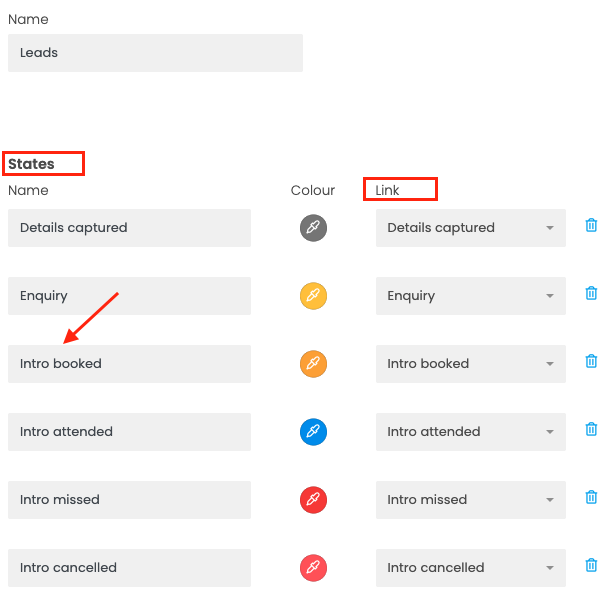
What are States and Links?
Think of a CRM pipeline like a map for your leads as they move toward becoming members. To set this map up we use states and links.
States: "Where is this person right now?"
States are the stops on the journey. Each lead can only be in one state at a time, which answers the question: What’s the current status of this person?
For your Lead pipeline, States might look like:
- Enquiry
- Contacted
- Trial Booked
- Trial Attended
- Trial Missed
- Trial Cancelled
- Lost
When you move a lead, you’re basically saying, “They’ve arrived at the next stop.” It’s straightforward and easy to understand, which makes it great for teams that want clarity at a glance.
Links: "How did they get there?"
Links focus on the actions or events that move someone from one state to another. Instead of just showing where a lead is, links explain what happened to move them forward (or backward).
Examples of links could be:
- Details Captured (when someone partially fills out a form but doesn't hit send)
- Enquiry
- Intro Booked (Trial or Appointment booked)
- Intro Missed
- Intro Attended
- Intro Cancelled
- Converted
- Lost
A lead might move from “Enquiry” to “Booked Trial” because the “Booked a trial” link was triggered by the customer booking a trial class.
In Summary:
-
States = status
Where the lead is right now
-
Links = actions
What happened to move them
States keep things simple and visible, while links add detail and automation behind the scenes.
Multi Pipelines
Gyms often generate leads through multiple offers. For example, you may run a Trial Week promotion alongside a Free Consultation. Because these audiences have different intentions, the messaging and follow-up process for each will vary. For this reason, it’s helpful to manage them in separate pipelines.
How to create an additional pipeline
- Navigate to Leads
- Click New → New Pipeline
- You’ll be taken to the CRM setup page, where you can create and configure your new pipeline
To view your pipelines, head back to the Leads section. From here, you can switch between pipelines and manage each lead type with tailored messaging and workflows.
Virtual Number
A CRM virtual number is a cloud-based phone number integrated directly with the CRM. This allows for voice calls and SMS to be handled via a desktop computer and/or the app. This automatically will log call data and text history directly into customer profiles. If you do not yet have a virtual number registered on your CRM account, please contact wodboard@support.com