
CRM Setup Wizard
A pipeline is a visual way of tracking potential customers through the different stages of your sales process.
For example, a typical gym sales pipeline might look like this:
New Enquiry → Follow up 1 → Follow up 2 → Under Consideration → Converted
Each stage, known as a state in WodBoard, represents a step in the customer's journey.
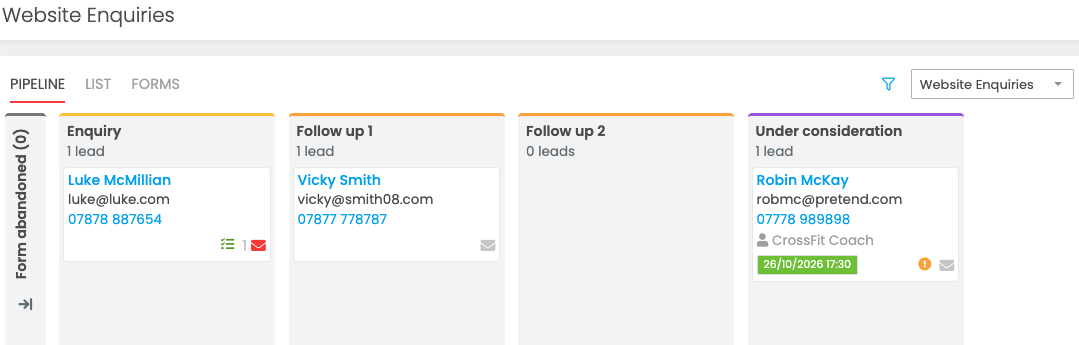
WodBoard offers a Setup wizard option that will build your pipeline AND create your automations which gives you a quick start. These options are designed around common gym sales processes and provide a useful starting point for managing your enquiries. You can then customise your pipeline and automations to suit how your gym operates (see step 3 on how to add custom options to your pipelines).
Set up
Head to Communications -> Automations -> New Automation -> Setup Wizard to get started:
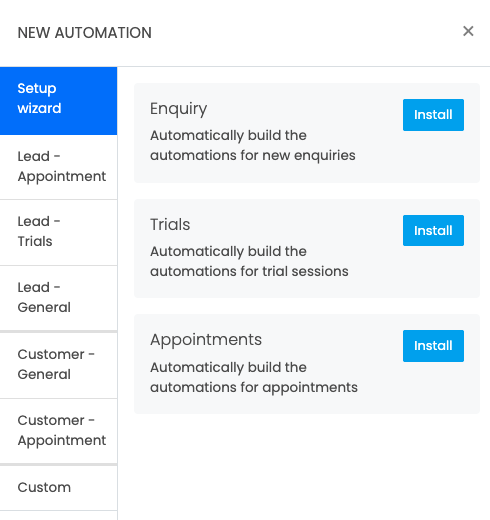
Select between Enquiries, Trials and Appointments*.
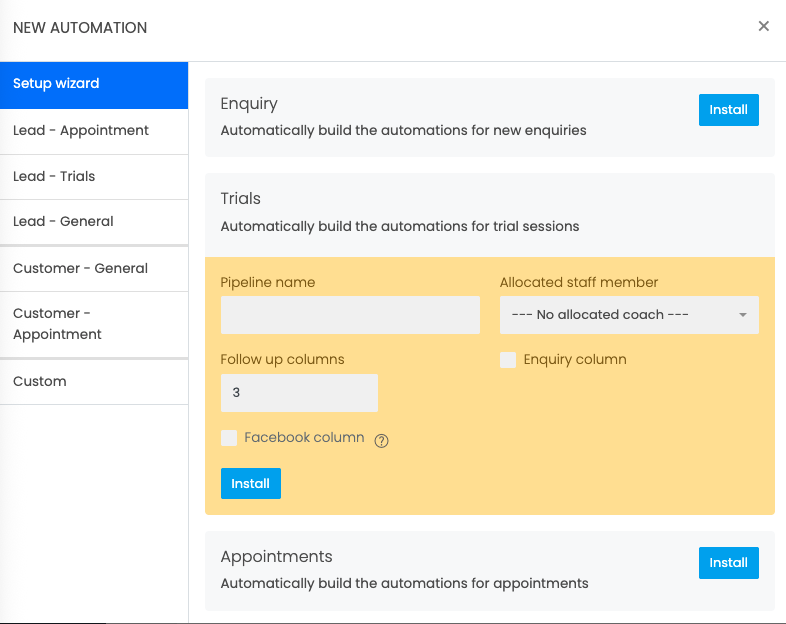
Name your Pipeline, allocated to a staff member if required (this will trigger any tasks to be sent to them directly). The follow up columns are 'empty' states and can be used as admin columns. Eg 'Call back 1, Call back 2, Call back 3'.
Below is an example of a Trial build, you can add in an enquiry column for both the Trial and Appointment pipelines OR have this sit in a separate pipeline.
*Appointments will require setting up a Service to link to this first. Ensure when setting up the Service linked to a lead appointment (eg Gym Consult) to check the 'allow one-offs' - set to £0. Do not check the 'customers can book in' option.
After installing the wizard:
- Check over the installed automations and make active
- Create forms in the Leads -> Forms section that link to your new pipeline