Programming
One of the key features within WodBoard is the ability to program workouts directly into the system for athlete tracking, performance analysis, and class management. If you're new to WodBoard, here's a quick guide to help you get started with programming input.
Getting Started with Programming Input
-
Access the Programming Section
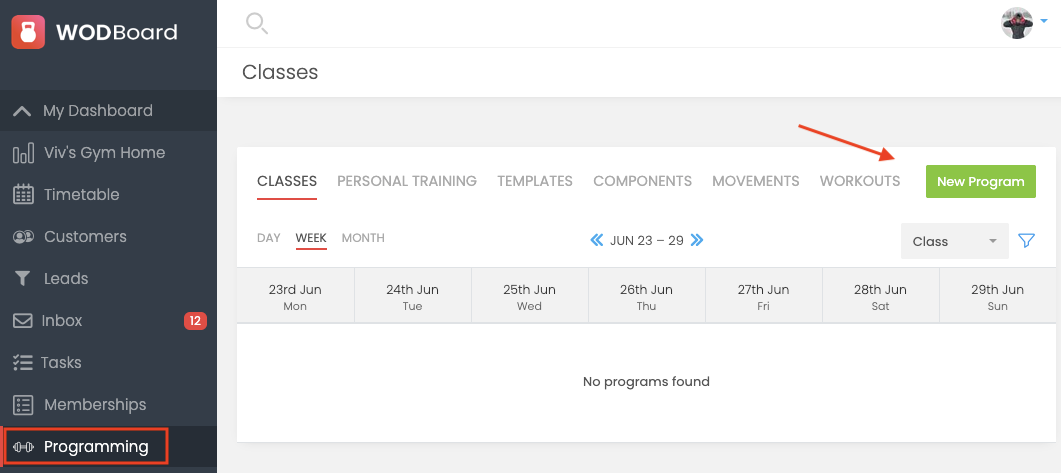
To begin, log in to your WodBoard admin dashboard. From the main menu, navigate to the “Programming” section. Click 'New Program' to get started.
All programming can be input and edited through the app. You will find this under the 'Dumbbell' icon in Admin mode, if you have the CRM this will be found in your menu.
-
Choose a Class or Create One
WodBoard allows you to assign your programming to classes, workshops, courses as well as individuals. Once this has been selected, you can choose the desired date. If you need to customise the release time of the programming, click on 'advanced'. Otherwise all programming is released according to your release time in Settings -> Programming.
-
Input Your Workout Components
- You can add as many of each component as you see fit.
- Warmup: General instruction for athletes and coaches for warm up
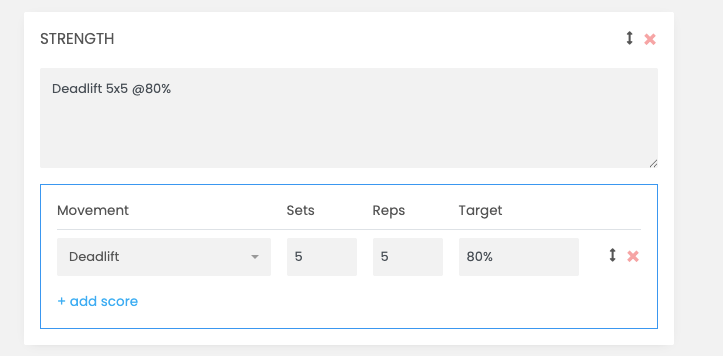
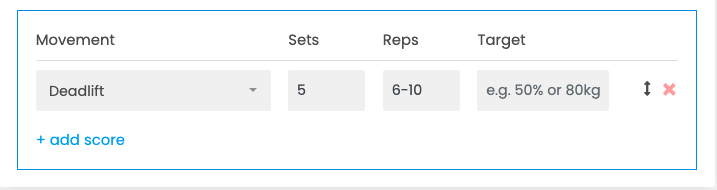
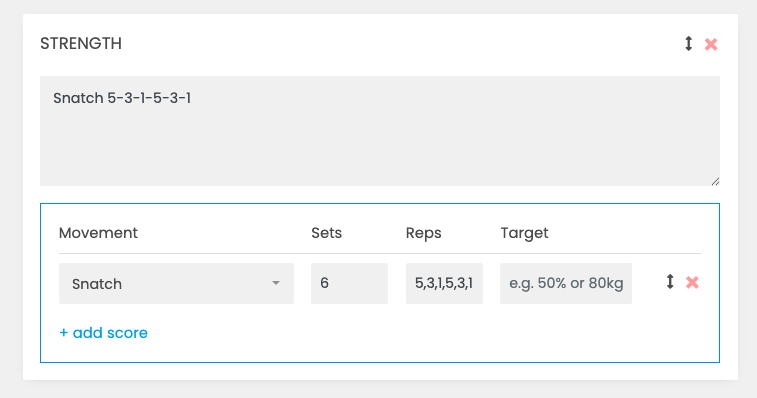
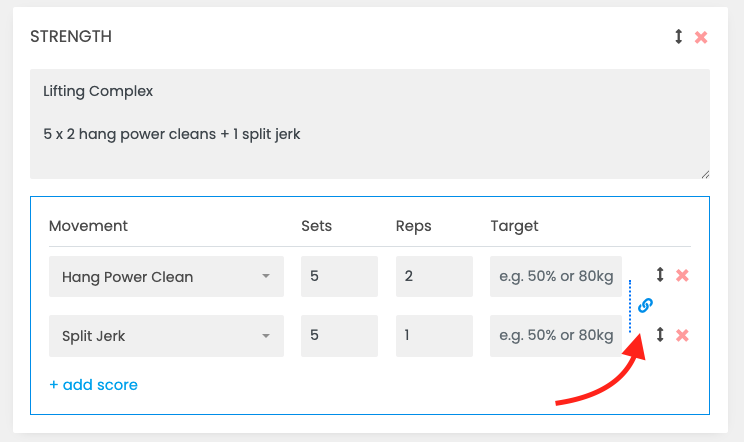
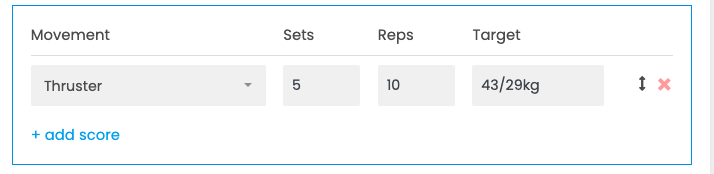
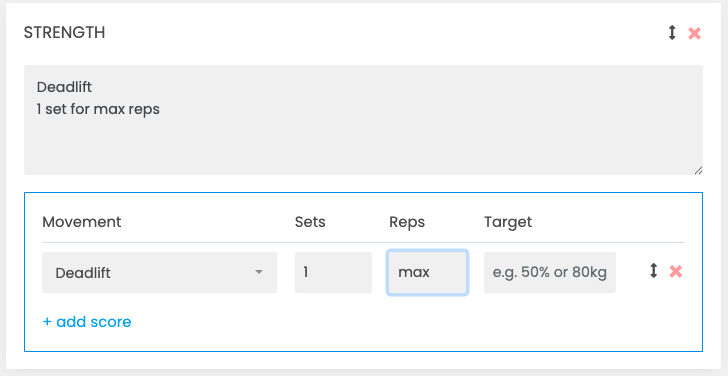
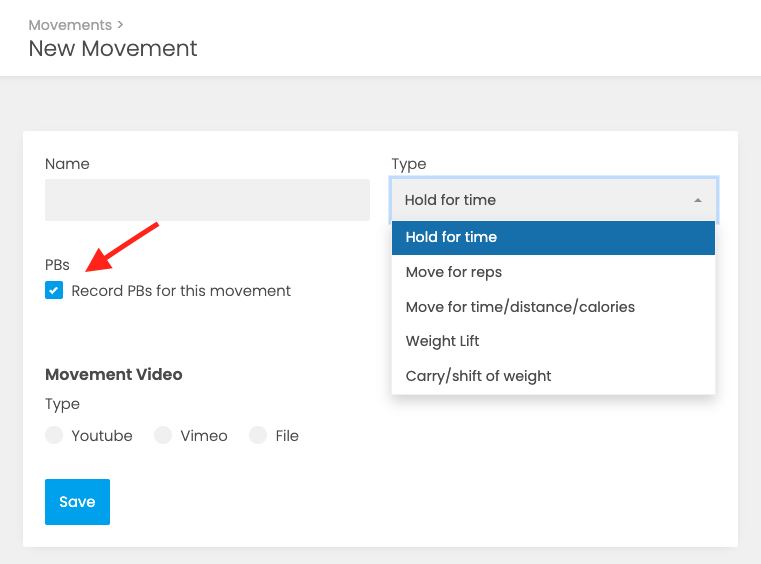
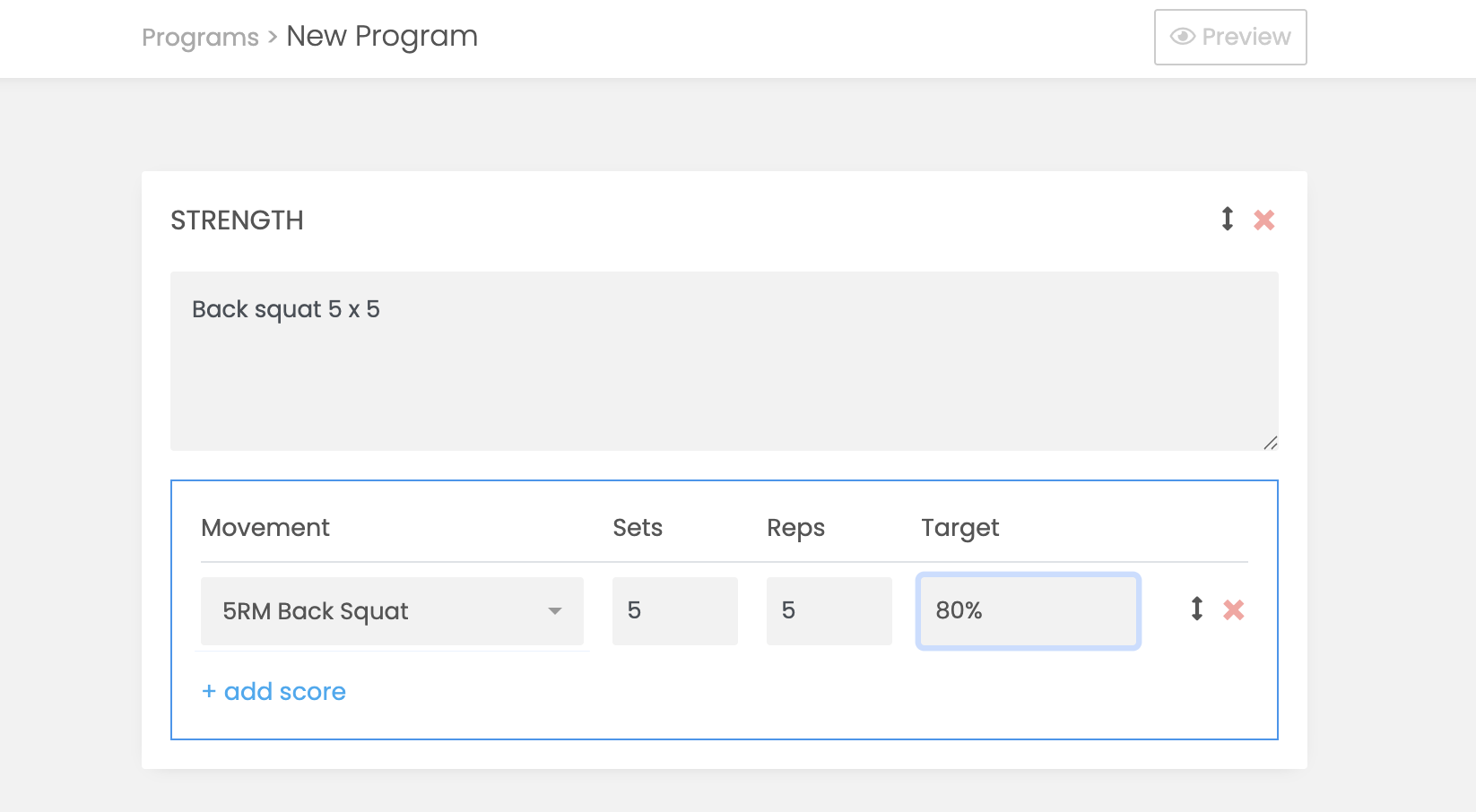
- Strength: Record sets, reps, and percentages or prescribed weight that attach to a movement. When movement scores are logged by the member, they will generate a graph when next programmed of the history of lifts and recommend a weight if a % is input based on their heaviest lift recorded. If inputting a new movement for your gym and you want the suggested weight to pull through to your members, ensure you click the 'record PBs' button.
Input examples for Strength
| Simple strength sets eg. 5 x 5 deadlifts |
|
| Rep ranges |
|
|
Waves
|
|
|
Complexes
|
|
| Assigning male/female weights |
|
| Max reps |
|
- WOD: Add custom AMRAPs, or For Time workouts with detailed instructions. You can also have multiple scoring methods for each workout. If you tag movements, this will pull relevant videos for your customer to see. You can save any workouts you wish to use as benchmarks.
- EMOM: Include any additional work that compliments your program in an 'every min on the min' format. To add each movement/station for scoring, click 'add score' for the required amount.
- Saved workout: In this section you will find all the saved workouts that we have on the system and any additional workouts you have created for your gym. This can be done in Programming -> Workouts -> New workout. If you'd like athletes to be notified when they have improved, make sure to choose recording PBs.
- Programming notes: These notes can be viewed by your customers. Great for adding notes on the stimulus or scaling options.
- Coaches notes: These notes can only be viewed by your staff members.
- Custom component: This gives you an option to create customised components specific to your class offering eg. Skill work or Accessory work. If you use a component consistently, you can save it.
The programming is linked with AI to save you input time, which will automatically add scoring based on what you have entered into the component. If something doesn't seem right the system will give you an option to report this to us under the 'click here' button.
Creating Movements for your Library
- You can search for a movement in the library by clicking on the 'filter'
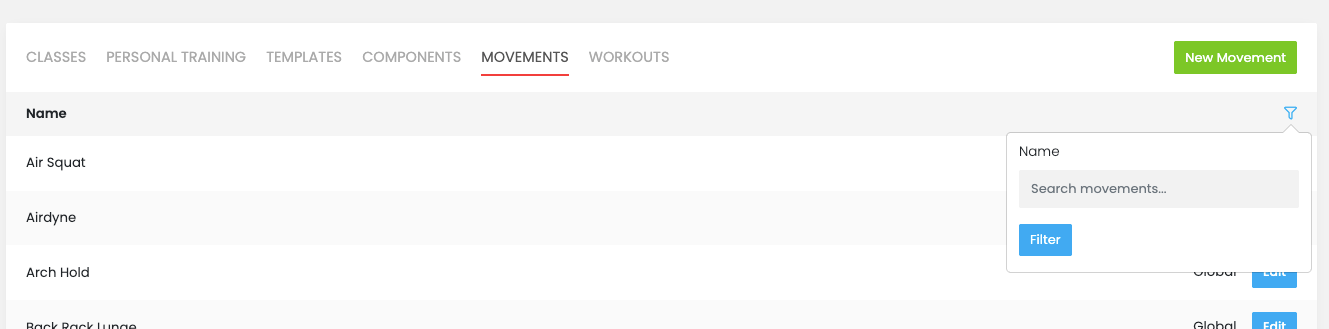
- We have a large number of movements saved on the system. If you wish to add any movements you can do that in Programming -> Movements -> New Movement. If you would like your athletes to be able to see their progress in Training History, make sure to 'tick' the PB box. If entered as a 'Weight lift' type and PB is checked, this will pull through data to their suggested loading for strength workouts.
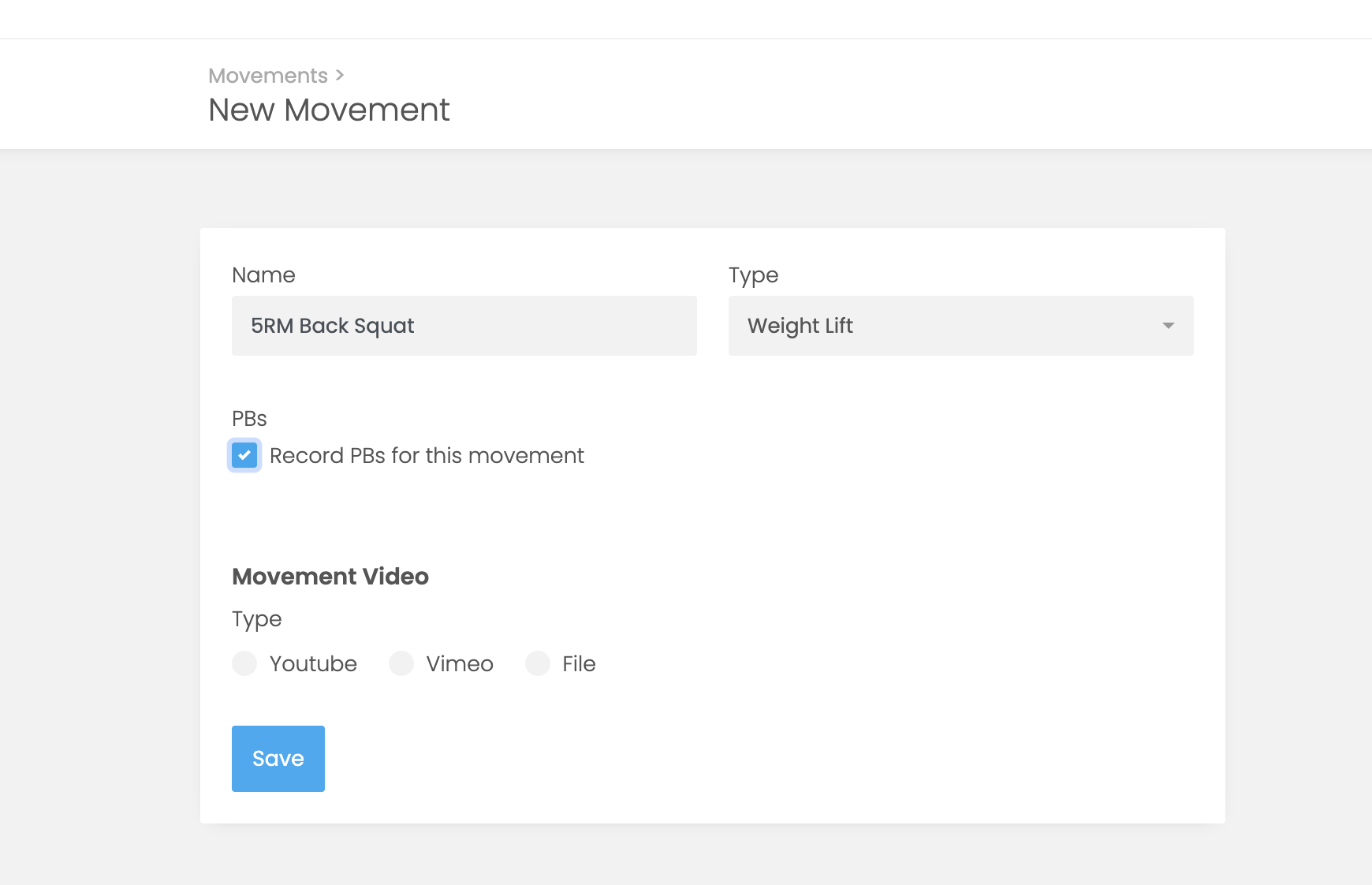
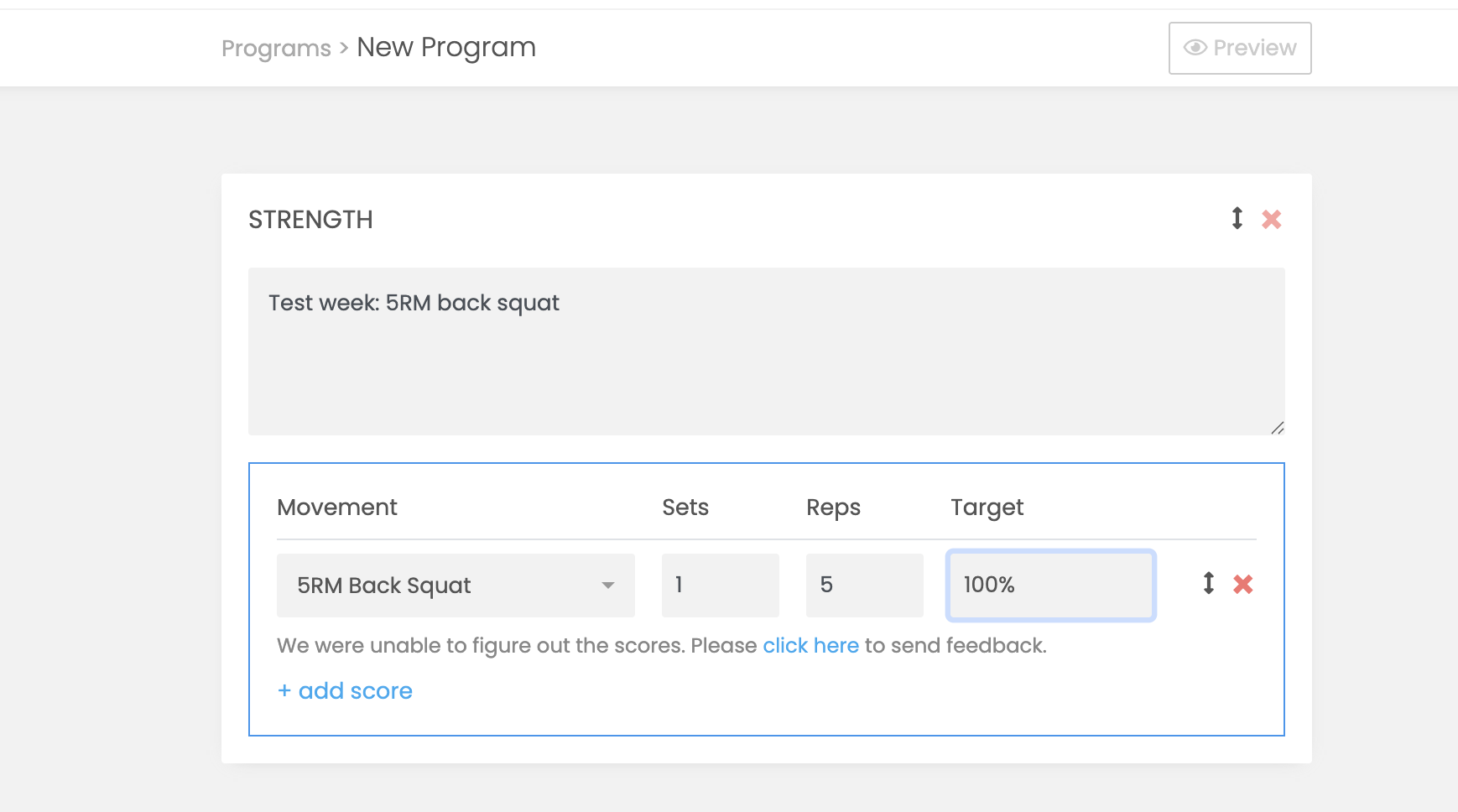
- If you wish to use 2RM/3RM/5RM in your programming and base percentage work off it, this is how to do it:
|
|
|
|
|
|
5. Publish and Review
- Once your programming is complete, SAVE IT. Athletes will be able to view the workout on their WodBoard app under the Dumbbell icon or 'programming' on the desktop when the program is set to release.
Inputting Scores
Tracking training history and inputting scores into the WodBoard app is essential for maximising progress and performance. By consistently logging workouts, athletes can monitor improvements over time, identify areas for growth, and stay motivated by seeing measurable results. This is also a great retention tool.
Programming Display in Gym
Here is an article on how to set up programming display in your gym on a public screen. From this screen you can sign athletes into classes, input their scores for the session and view the whiteboard.

Programming Settings
The setting options for programming allows the gym to customise how workouts are shared, when they are released and allows you to customise the whiteboard logging options. Additionally, programs can be made private, ensuring only authorised users have access. Head to Settings -> Programming to get started.
Multi-location gyms have a setting to allow access to 'all programming' or 'x location only'.
Group Class Options
Select who can view your programming and those that have access to the whiteboard to record scores. The Release schedule 'in a weekly batch' is a very popular option with gyms to release programming the same day and time each week. If you want to hide the program until after they have attended, select 'after customer attends class' option.
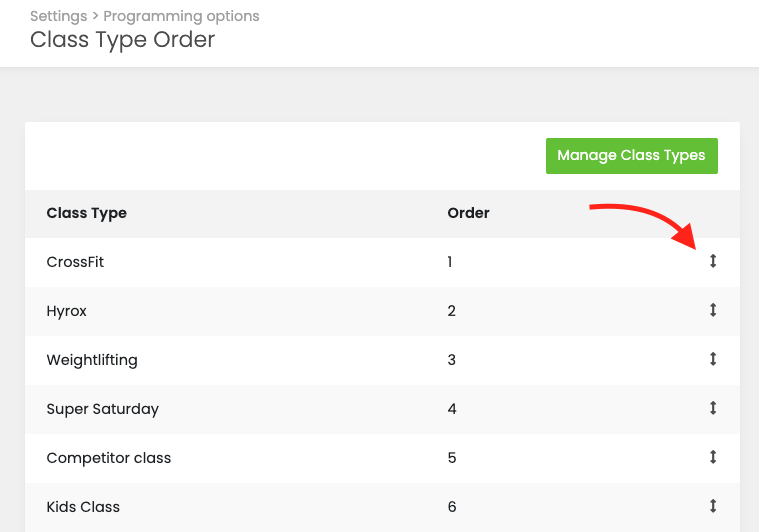
Programming order
You can manage in which order the programming shows on the dropdown menu. Head to Settings -> Programming options -> Programming order. You can drag the classes up and down to change it.
Restrictions
This is where you can set up programming to be made private. This is class based and linked to plans/passes.
Example: Only the Gold membership plans can have access to programming of the Accessory Class.

3rd Party Programming
If you are interested in connecting a 3rd party program, head to Settings -> Marketplace to see what program partners are available through WodBoard. You can subscribe from this page and will receive an email to confirm your subscription. How to set up.